
On this page
Build Tetris
This tutorial walks you through building a complete game in Defold with TypeScript: writing .ts, compiling it to Lua, and wiring the scene in the editor. You'll see how defold-typescript keeps the workflow organized while you write modern, extensible code that's easy to reason about and navigate.
Game overview
Tetris may look like a small game — one moving object, no physics, a fixed-step clock. Yet writing it in TypeScript has real advantages over Lua: every call into the Defold API is type-checked, and the entire project is one codebase to navigate and refactor. The patterns you learn here carry over to most other games.
Here’s our table of tetrominoes — the pieces at the heart of the game:
| Piece | Index | Color |
|---|---|---|
| I | 1 | cyan |
| O | 2 | yellow |
| T | 3 | purple |
| S | 4 | green |
| Z | 5 | red |
| J | 6 | blue |
| L | 7 | orange |
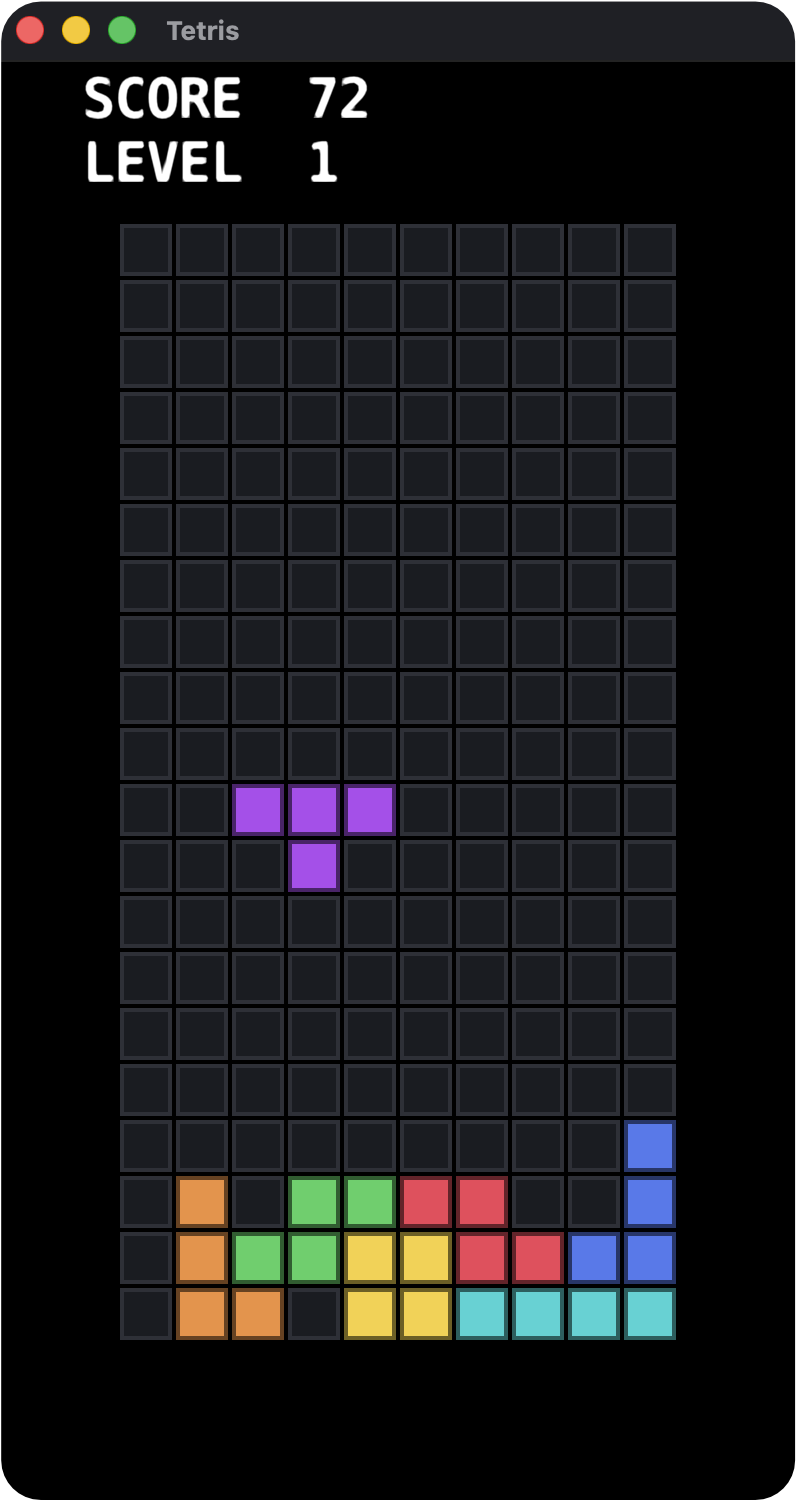
What the finished game looks like — full source at docs/examples/tetris-tutorial/:
01 — Scaffold the project
First make sure you have Defold and Bun installed, plus an editor with TypeScript support. In this tutorial we'll use VS Code.
The npm package @defold-typescript/cli scaffolds a Defold project with TypeScript that compiles to Lua — no engine fork, no runtime to ship.
-
Create the project folder. Make an empty folder named
tetris, then open it in VS Code with File → Open Folder…. -
Scaffold the project. Open Terminal → New Terminal in VS Code and run:
bunx @defold-typescript/cli@latest init .This scaffolds a new Defold project into the current folder — the same as creating one from the Defold start screen. Prefer to start in Defold? Create the project there first, then run the same
init .inside it:initdetects the existinggame.projectand just adds the TypeScript surface, leaving your scene untouched.init .writes a samplesrc/main.tsand a bootmain/main.collection. Nothing else is generated — you add the game's files as you go:tetris/ ├─ .vscode/ # VS Code editor settings, snippets, debug launcher ├─ input/ │ └─ game.input_binding # empty binding init writes; you add triggers in Step 02 ├─ main/ │ └─ main.collection # boot scene init writes ├─ src/ │ └─ main.ts # sample script — you delete it in Step 06 ├─ .gitignore # files Git should not track ├─ biome.json # Biome config for checking and formatting the project ├─ game.project # Defold project settings ├─ mise.toml # tasks for running common commands with `mise run` ├─ package.json # Bun package manifest and dependencies └─ tsconfig.json # TypeScript compiler settings -
Install the dependencies that the
initcommand added topackage.json. They power editor IntelliSense, type-checking, and compilation to Lua:bun install -
Start the watcher that automatically converts your
.tsfiles:bunx @defold-typescript/cli watchNote
Leave
watchrunning. On every save it regenerates each.tsfile's output beside the source —.ts.script,.ts.gui_script, or a plain.luamodule — and Defold builds and runs those generated files. -
Open the project in Defold: File → Open Project… (or the start screen) → Open From Disk →
tetris/game.project.
What you'll have at this point:
- VS Code, with
watchrunning in the terminal, where you edit the.tsfiles with full IntelliSense and type-checking - Defold, with
game.projectopen, where you build the scene and run the game
Note
If you run the game from Defold now (Project → Build) you'll see a black window.
Warning
If you see:
"/src/main.ts.script" could not be found.in Defold's console, or- the game doesn't seem to apply changes
it is a sign you forgot to start the watch process.
Notice that the watch process produces two files beside src/main.ts:
src/main.ts.script— the compiled Lua scriptsrc/main.ts.script.map— a source map linking the Lua back to your TypeScript, so errors and breakpoints land on the.ts
These are generated from the sample script. Deleting main.ts makes watch erase both automatically — but keep them for now, because the game's main scene still references main.ts.script.
02 — Input bindings
Tetris needs five keys. Defold maps hardware keys to named actions through an input binding, and your script listens for those action names. Set this up first — it is pure editor work, and the script in Step 05 expects the names to exist.
init already scaffolded an empty input/game.input_binding and pointed game.project at it, so you only need to fill in the triggers.
- In the Assets pane, open
input/game.input_binding. - Add five Key Triggers:
| Input | Action |
|---|---|
Left |
left |
Right |
right |
Down |
soft_drop |
Up |
rotate |
Space |
hard_drop |
Warning
Do not forget to save the files you edit. In Defold, Ctrl/Cmd+S saves all modified files at once; in VS Code it saves only the currently open one.
Inside the script you'll hash these action names (for example, hash("left")) in Step 05.
03 — Model the grid: src/grid.ts
Start with a pure model: a 10×20 grid of cells, each empty or holding a piece's color. Engine-free logic is easy to reason about and to type. The whole model is one file — dimensions, the cell types, an empty board, the free-cell test, and line clearing. We'll build src/grid.ts one function at a time below; the complete file is in Full Script at the end of this section, ready to paste into VS Code.
This module is a shared singleton: every import becomes a cached require. Per-playthrough state stays on self (Step 05).
New to grids? How the board is just numbers
The board is a plain 10×20 table of numbers — no engine types, no graphics. Each cell holds 0 for empty or 1–7 for a color. Because it is ordinary data, you can read it, test it, and reason about it without running the game.
The two types. Cell is one square (0 | 1 | … | 7); Grid is rows of cells (Cell[][]). Everything in this file works on those two shapes alone.
Reading isFree. It answers "can a square hold a piece here?" A column outside 0…COLS is a side wall. r >= ROWS is the floor — that single test is how a falling piece knows to stop at the bottom. A negative r sits above the top of the board and stays free, so a new piece can spawn just off-screen and slide into view.
Create a new src/grid.ts and follow along — the full file is at the end of this section.
First we need some constants and types for our board model:
export const COLS = 10;
export const ROWS = 20;

export type Cell = 0 | 1 | 2 | 3 | 4 | 5 | 6 | 7;
export type Grid = Cell[][];
This defines Grid as rows of Cell values, where each Cell can only be the numbers 0 through 7. Remember that our tetrominoes are indexed starting from 1, and 0 represents an empty cell.
Now emptyGrid function. We call it once when a new game starts to get a clean board and store it in shared game memory:
export function emptyGrid(): Grid {
  const g: Grid = [];
  for (let r = 0; r < ROWS; r++) {
    const row: Cell[] = [];
    for (let c = 0; c < COLS; c++) row.push(0);
    g.push(row);
  }
  return g;
}
The emptyGrid function takes nothing and returns a fresh structure of type Grid: ROWS arrays of COLS zeros. The highlighted line fills one row with empty cells; the outer loop stacks twenty such rows. We have to recreate each row from scratch because arrays are "reference" types — in both TypeScript and Lua.
isFree — can a square sit here?
export function isFree(g: Grid, c: number, r: number): boolean {
  if (c < 0 || c >= COLS || r >= ROWS) return false;
  if (r < 0) return true;
  return g[r][c] == 0;
}
It takes the grid data of type Grid and c, r cell indexes, and returns true only when a piece may occupy that square. Off the sides or below the floor is false; above the top is true because the pieces spawn off-screen and we want to allow that. The trap is the highlighted line: write == 0. Happily, we can't simply return g[r][c] directly because it won't be considered a boolean — which is exactly what we declared as the return type of isFree. Thank you, TypeScript!
Tip
You can use === too — it lowers to the same Lua here. But be careful:
You cannot use if (g[r][c]) return true; else return false; because Lua treats only nil and false as falsy, so 0 is truthy and an empty cell would read as occupied!
clearLines — drop full rows and count them
export function clearLines(g: Grid): number {
  let cleared = 0;
  for (let r = ROWS - 1; r >= 0; r--) {
    let full = true;
    for (let c = 0; c < COLS; c++) {
      if (g[r][c] == 0) {
        full = false;
        break;
      }
    }
    if (full) {
      g.splice(r, 1);
      const blank: Cell[] = [];
      for (let c = 0; c < COLS; c++) blank.push(0);
      g.unshift(blank);
      cleared++;
      r++;
    }
  }
  return cleared;
}
It scans rows from the bottom up; whenever a row has no empty cell it deletes that row (splice) and pushes a fresh blank one onto the top (unshift) — gravity for the whole stack. It returns how many rows vanished, which Step 05 turns into score. The r++ after a clear re-checks the same index, because every row above just shifted down by one.
Full Script — src/grid.ts
export const COLS = 10;
export const ROWS = 20;

export type Cell = 0 | 1 | 2 | 3 | 4 | 5 | 6 | 7;
export type Grid = Cell[][];

export function emptyGrid(): Grid {
  const g: Grid = [];
  for (let r = 0; r < ROWS; r++) {
    const row: Cell[] = [];
    for (let c = 0; c < COLS; c++) row.push(0);
    g.push(row);
  }
  return g;
}

export function isFree(g: Grid, c: number, r: number): boolean {
  if (c < 0 || c >= COLS || r >= ROWS) return false;
  if (r < 0) return true;
  return g[r][c] == 0;
}

export function clearLines(g: Grid): number {
  let cleared = 0;
  for (let r = ROWS - 1; r >= 0; r--) {
    let full = true;
    for (let c = 0; c < COLS; c++) {
      if (g[r][c] == 0) {
        full = false;
        break;
      }
    }
    if (full) {
      g.splice(r, 1);
      const blank: Cell[] = [];
      for (let c = 0; c < COLS; c++) blank.push(0);
      g.unshift(blank);
      cleared++;
      r++;
    }
  }
  return cleared;
}
04 — Define the tetrominoes: src/pieces.ts
We'll walk src/pieces.ts piece by piece below; the complete file is in Full Script at the end of this section.
Start by importing the Cell type from the previous script and exporting two more types:
import type { Cell } from "./grid";

export type Offset = [number, number]; // [col, row], row grows down
export type Piece = { color: Cell; rots: Offset[][] };
The Piece type has a color and a list of four rotations, stored in rots.
How a single shape is built
Offsets mean “where this cell is relative to the pivot.” The T-piece in its spawn orientation is the pivot, plus one cell left, right, and below:
//    -1   0  +1     ← col offset
// 0   ▓   ▓   ▓      [-1,0] [0,0] [1,0]
// +1      ▓                 [0,1]
So this can be stored as a sequence of Offsets.
For example, our I piece can be defined as follows:
[
  [-1, 0],
  [0, 0], // pivot
  [1, 0],
  [2, 0],
]
The pivot point for I is off-center, but the rotation math handles that. The row part grows downward to match how the whole grid is defined.
How rotations are derived
Here's the one piece of geometry worth knowing. To rotate any offset 90° clockwise around the pivot, swap the coordinates and negate the new column: [c, r] → [-r, c]. Apply it four times and you cycle back to the start. We don't hand-invent rotations — we compute them from one base shape.
Where [c, r] → [-r, c] comes from
A piece is just a handful of [col, row] offsets measured from a pivot at [0, 0]. Rotating the whole piece 90° clockwise is the same move applied to each offset: swap the two numbers, then flip the sign of the new column. That is all [c, r] → [-r, c] says. The [0,0] stays in place.
Why row grows downward. Row 0 is the top and rows count up as you go down, the way screen pixels do. With that convention the formula turns "right" ([1, 0]) into "down" ([0, 1]), "down" into "left", and so on — exactly the clockwise turn you see on screen. Seen [c, r] → [-r, c] before and read it as counterclockwise? That instinct is right for the axes textbooks use, where y points up — there this is the counterclockwise 90° turn. It only comes out clockwise here because our vertical axis, the row, points down instead: gravity and soft drop both move a piece down by increasing its row, so the same formula spins the opposite-looking way.
Why four states. Apply the move four times and the piece lands back where it started. Some pieces look the same in two or four of those states, but storing all four keeps the bookkeeping uniform: the next rotation is always (rot + 1) % 4 (% returns the remainder left over when the left side is divided by the right side).
rotateCW — spin one shape 90°
// 90° clockwise about the pivot. row grows downward,
// so this turns "right" into "down", "down" into "left", etc.
function rotateCW(cells: Offset[]): Offset[] {
  return cells.map(([c, r]) => [-r, c] as Offset);
}

// Build all 4 states from a base: [base, +90, +180, +270].
function four(base: Offset[]): Offset[][] {
  const s: Offset[][] = [base];
  for (let i = 0; i < 3; i++) s.push(rotateCW(s[s.length - 1]));
  return s;
}
The four function builds the four rotations as an array.
The seven base shapes
PIECES — the seven shapes as data
Now we'll use our four function and combine the colors with the rotations.
By storing the result in the module-level PIECES constant, we precompute the rotations before the game starts. The running game never rotates anything; it just reads an already calculated rotation by index, from 0 through 3.
Each entry is one tetromino: a color (1–7) and rots, its four precomputed rotations from four(base). You author only the spawn offsets — the I-piece laid flat is [[-1, 0], [0, 0], [1, 0], [2, 0]] — and four derives the other three states. The trailing comment on each entry (// I, // O, …) names the letter the shape resembles.
export const PIECES: Piece[] = [
  {
    color: 1,
    rots: four([
      [-1, 0],
      [0, 0],
      [1, 0],
      [2, 0],
    ]),
  }, // I
Warning
This excerpt shows the array start and the I piece only. Continue the same pattern for the other six tetrominoes (O, T, S, Z, J, and L), or paste the complete src/pieces.ts from the Full Script disclosure below.
cellsCoveredByPiece — where a piece sits on the board
export function cellsCoveredByPiece(piece: number, rot: number, px: number, py: number): Offset[] {
  return PIECES[piece].rots[rot].map(([c, r]) => [px + c, py + r] as Offset);
}
This function answers one simple question: “which four board squares would this piece cover right now?”
Read it from left to right:
PIECES[piece]picks the shape, such asIorT..rots[rot]picks the direction it is facing:0,1,2, or3..map(...)walks the four offsets and adds the piece's current board position,[px, py].
For example, the flat I piece has offsets [-1, 0], [0, 0], [1, 0], and [2, 0]. If the piece's pivot point coordinates on the board are [4, 0], cellsCoveredByPiece returns [3, 0], [4, 0], [5, 0], and [6, 0] — the real board cells it covers.
Step 05 uses that list before every move: check the four cells with isFree, then move only if all four are legal.
nextPieceIndex — the shuffled-bag randomizer
let bag: number[] = [];
export function nextPieceIndex(): number {
  if (bag.length == 0) {
    bag = [0, 1, 2, 3, 4, 5, 6];
    for (let i = bag.length - 1; i > 0; i--) {
      const j = math.random(0, i);
      [bag[i], bag[j]] = [bag[j], bag[i]];
    }
  }
  const index = bag[bag.length - 1];
  bag.pop();
  return index;
}
Instead of pure random it deals from a bag holding all seven pieces, refilling and reshuffling only once the bag empties — so you never hit long droughts or floods of one shape. The shuffle is the highlighted Fisher–Yates swap, using Lua's integer math.random(0, i). Each call pops one index off the end and returns it.
Note
This uses Lua's math.random(0, i) because the two-argument form returns an integer in a range directly. Math.random() compiles fine too — it becomes math.random() — but returns a float in [0, 1), so for an index you'd write math.floor(Math.random() * (i + 1)). Much of the JS standard library transpiles (Math, array and string methods); reach for Defold's math, os, and json for engine-specific concerns. cellsCoveredByPiece is the bridge from abstract piece data to board position — Step 05 calls it on every movement check.
Full Script — src/pieces.ts
import type { Cell } from "./grid";

export type Offset = [number, number]; // [col, row], row grows down
export type Piece = { color: Cell; rots: Offset[][] };

function rotateCW(cells: Offset[]): Offset[] {
  return cells.map(([c, r]) => [-r, c] as Offset);
}
function four(base: Offset[]): Offset[][] {
  const s: Offset[][] = [base];
  for (let i = 0; i < 3; i++) s.push(rotateCW(s[s.length - 1]));
  return s;
}

export const PIECES: Piece[] = [
  {
    color: 1,
    rots: four([
      [-1, 0],
      [0, 0],
      [1, 0],
      [2, 0],
    ]),
  }, // I
  {
    color: 2,
    rots: four([
      [0, 0],
      [1, 0],
      [0, 1],
      [1, 1],
    ]),
  }, // O
  {
    color: 3,
    rots: four([
      [0, 0],
      [-1, 0],
      [1, 0],
      [0, 1],
    ]),
  }, // T
  {
    color: 4,
    rots: four([
      [0, 0],
      [1, 0],
      [-1, 1],
      [0, 1],
    ]),
  }, // S
  {
    color: 5,
    rots: four([
      [-1, 0],
      [0, 0],
      [0, 1],
      [1, 1],
    ]),
  }, // Z
  {
    color: 6,
    rots: four([
      [-1, 0],
      [0, 0],
      [1, 0],
      [1, 1],
    ]),
  }, // J
  {
    color: 7,
    rots: four([
      [-1, 0],
      [0, 0],
      [1, 0],
      [-1, 1],
    ]),
  }, // L
];

export function cellsCoveredByPiece(piece: number, rot: number, px: number, py: number): Offset[] {
  return PIECES[piece].rots[rot].map(([c, r]) => [px + c, py + r] as Offset);
}

let bag: number[] = [];
export function nextPieceIndex(): number {
  if (bag.length == 0) {
    bag = [0, 1, 2, 3, 4, 5, 6];
    for (let i = bag.length - 1; i > 0; i--) {
      const j = math.random(0, i);
      [bag[i], bag[j]] = [bag[j], bag[i]];
    }
  }
  const index = bag[bag.length - 1];
  bag.pop();
  return index;
}
05 — The board script: src/board.ts
This is the heart of the game. We will build the grid, run gravity, read input, lock pieces, and score lines — reusing the modules we wrote earlier. We will also redraw every frame — this is how games are written in most game engines, Defold included.
Tip
For regular game objects you'll mostly use defineScript. However, in this game we run a GUI script, because Tetris is basically a GUI and needs GUI-specific APIs that regular scripts don't expose. You can read more about that here.
So, because this is a GUI board, we need a default export from this script; the watch process compiles that export into a .ts.gui_script Lua file. The function we export is called defineGuiScript:
export default defineGuiScript({...})Note
The snippets below omit their import statements on purpose, to build a habit worth having.
To make a symbol like defineGuiScript available in the script, tap Ctrl/Cmd-Space right after the typed name
and pick where it should be imported from. Some symbols come from our own scripts, others from the @defold-typescript/types package.
We'll build it top to bottom — constants and types first, then the cell builder and painter, the movement and collision helpers, the lock/score path, the per-frame render, and finally the lifecycle hooks that tie them together. The complete src/board.ts is in the Full Script disclosure at the end of this section, ready to paste.
We'll begin by defining constants, hashing the action names, building the fill-color list, and deriving each border color as 45% of its fill:
const CELL = 28; // cell pitch in pixels
const GAP = 2; // space between cells — tune the grid look from one place
const BORDER = 2; // thickness of the frame drawn around each filled cell
const WINDOW_W = 400;
const WINDOW_H = 720;

// Bottom-left of the COLS×ROWS board in GUI (screen) space, centering the
// 280×560 grid in the configured portrait window (see game.project display).
const ORIGIN_X = (WINDOW_W - COLS * CELL) / 2;
const ORIGIN_Y = (WINDOW_H - ROWS * CELL) / 2;

const LINE_SCORE = [0, 40, 100, 300, 1200];

// Input ids, hashed once at module scope.
const LEFT = hash("left");
const RIGHT = hash("right");
const SOFT = hash("soft_drop");
const ROTATE = hash("rotate");
const HARD = hash("hard_drop");

// Fill colors indexed by Cell color (1..7); index 0 is transparent (empty).
const TINTS = [
  vmath.vector4(0, 0, 0, 0),
  vmath.vector4(0.18, 0.83, 0.83, 1), // I
  vmath.vector4(0.97, 0.82, 0.22, 1), // O
  vmath.vector4(0.69, 0.29, 0.94, 1), // T
  vmath.vector4(0.27, 0.82, 0.38, 1), // S
  vmath.vector4(0.94, 0.26, 0.35, 1), // Z
  vmath.vector4(0.31, 0.48, 0.94, 1), // J
  vmath.vector4(0.94, 0.56, 0.23, 1), // L
];
// A darker shade of each fill, drawn as the cell border.
const BORDERS = TINTS.map((t) => vmath.vector4(t.x * 0.45, t.y * 0.45, t.z * 0.45, t.w));
// Empty cells stay visible as a dim well with a faint grid line.
const EMPTY_FILL = vmath.vector4(0.1, 0.11, 0.13, 1);
const EMPTY_BORDER = vmath.vector4(0.18, 0.19, 0.22, 1);
The LEFT/RIGHT/SOFT/ROTATE/HARD constants pre-hash the five action names you bound in Step 02 once, at module scope. Defold delivers action_id to on_input already hashed, so comparing against these is a fast == check on a Hash, not a string compare.
Now we'll alias the handle type that @defold-typescript/types uses to keep GUI nodes distinct from other engine handles.
type GuiNode = Opaque<"node">;Note
You can read more about the Opaque type in the API Reference. For now just know that it is something we never construct ourselves —
the GUI functions hand it back to us. You don't have to create the alias either, but
it makes the code easier to type and read.
BoardSelf — the shape of self:
interface BoardSelf {
  fills: GuiNode[][];
  borders: GuiNode[][];
  grid: Grid;
  piece: number;
  rot: number;
  px: number;
  py: number;
  timer: number;
  fall: number;
  score: number;
  lines: number;
  level: number;
  over: boolean;
  hud: boolean; // true once the HUD GUI registers (see on_message)
}
This interface is the one shape init returns and every helper reads through self. It bundles the view (fills/borders, the GUI node grids), the model (grid, plus the active piece's piece/rot/px/py), and the run state (timer/fall, score/lines/level, over). The trap is the last field: hud starts false and only flips once the HUD announces itself, so the board never posts to a HUD that does not exist yet.
buildGrid — make the cell nodes once
function buildGrid(): { fills: GuiNode[][]; borders: GuiNode[][] } {
  const fills: GuiNode[][] = [];
  const borders: GuiNode[][] = [];
  const outer = CELL - GAP;
  const inner = outer - 2 * BORDER;
  for (let r = 0; r < ROWS; r++) {
    const frow: GuiNode[] = [];
    const brow: GuiNode[] = [];
    for (let c = 0; c < COLS; c++) {
      const pos = vmath.vector3(
        ORIGIN_X + c * CELL + CELL / 2,
        ORIGIN_Y + (ROWS - 1 - r) * CELL + CELL / 2,
        0,
      );
      brow.push(gui.new_box_node(pos, vmath.vector3(outer, outer, 0)));
      frow.push(gui.new_box_node(pos, vmath.vector3(inner, inner, 0)));
    }
    borders.push(brow);
    fills.push(frow);
  }
  return { fills, borders };
}
It runs once in init and returns two ROWS × COLS arrays of GUI box nodes — a border box with a smaller fill box on top of it per cell. The highlighted lines are where the nodes are actually born with gui.new_box_node; everything else is just position math. Row 0 is the top of the board, so ROWS - 1 - r flips the row index into bottom-up screen space.
paint — recolor one cell
function paint(self: BoardSelf, r: number, c: number, value: number): void {
  gui.set_color(self.fills[r][c], value == 0 ? EMPTY_FILL : TINTS[value]);
  gui.set_color(self.borders[r][c], value == 0 ? EMPTY_BORDER : BORDERS[value]);
}
It recolors a single cell's two nodes — the fill and its border — from that cell's value. A 0 paints the empty-well colors (EMPTY_FILL/EMPTY_BORDER); any 1–7 paints that color's TINTS entry with the matching darker BORDERS shade. The nodes never move or change size after buildGrid; every visible change on the board is just a recolor, and redraw calls this for every cell each frame.
fits — would these four cells be legal?
function fits(self: BoardSelf, piece: number, rot: number, px: number, py: number): boolean {
  for (const [c, r] of cellsCoveredByPiece(piece, rot, px, py)) {
    if (!isFree(self.grid, c, r)) return false;
  }
  return true;
}
This is the single rule the whole game leans on: given a piece, a rotation, and a pivot, ask cellsCoveredByPiece for the four board cells it would cover and test each one. The highlighted line bails the moment any cell is off the walls/floor or already filled. Note it takes the candidate position as plain arguments — it never moves anything, so callers can test a hypothetical placement before committing.
canPlace — does the piece fit where it is now?
function canPlace(self: BoardSelf): boolean {
  return fits(self, self.piece, self.rot, self.px, self.py);
}
A one-line convenience wrapper: it asks fits about the piece's current position in self rather than a hypothetical one. It is used right after a new piece spawns — if the fresh piece cannot fit, the stack has reached the ceiling and the game is over.
tryMove — commit a shift only if it is legal
function tryMove(self: BoardSelf, dc: number, dr: number): boolean {
  if (fits(self, self.piece, self.rot, self.px + dc, self.py + dr)) {
    self.px += dc;
    self.py += dr;
    return true;
  }
  return false;
}
It takes a column/row delta, tests the would-be position with fits, and only then writes the new px/py back into self. It returns whether the move happened, which gravity and hard-drop use to know when a piece has hit bottom. This test-then-commit shape is why a blocked move silently does nothing instead of clipping a piece into the wall.
tryRotate — spin, with a wall kick
function tryRotate(self: BoardSelf): void {
  const next = (self.rot + 1) % 4;
  for (const kick of [0, -1, 1]) {
    if (fits(self, self.piece, next, self.px + kick, self.py)) {
      self.rot = next;
      self.px += kick;
      return;
    }
  }
}
Rotating against a wall would normally fail, so before giving up it retries the rotation nudged one column each way — the highlighted kick list tries 0 (in place), then -1, then +1. The first offset that fits is committed (rotation and the nudge), and it returns; if none fit, the piece simply does not turn. That nudge is the classic "wall kick" that keeps rotation from feeling stuck.
hardDrop — slam to the bottom
function hardDrop(self: BoardSelf): void {
  while (tryMove(self, 0, 1)) self.score += 1;
  self.timer = self.fall;
}
It just calls tryMove(self, 0, 1) in a loop until a downward step is no longer legal, scoring one point per row dropped. Setting timer = fall forces the very next update to lock the piece immediately, so a hard drop feels instant rather than pausing on the floor for a frame.
lockPiece — freeze the piece into the grid
function lockPiece(self: BoardSelf): void {
  const color = PIECES[self.piece].color;
  for (const [c, r] of cellsCoveredByPiece(self.piece, self.rot, self.px, self.py)) {
    if (r >= 0) self.grid[r][c] = color;
  }
}
When a piece can fall no further, this writes its color into the model grid permanently — the four falling cells become locked blocks. The r >= 0 guard is the trap: a piece can lock with cells still above the top row (r negative), and writing those would index outside the grid, so they are skipped.
postHud — push score and level to the HUD
function postHud(self: BoardSelf): void {
  // Only post once the HUD has registered. A gui script can't call go.exists
  // (go.* is .script-only), and msg.post to a missing instance errors at
  // dispatch — so the HUD announces itself in its init (see on_message below).
  if (self.hud) {
    msg.post("/hud#hud", "set_hud", { score: self.score, level: self.level });
  }
}
It forwards score and level to the HUD with msg.post, but only when self.hud is true. The guard is the trap: a gui script can't probe a target with go.exists (that API is .script-only), and msg.post to a missing instance errors at dispatch — so the HUD registers itself first by posting hud_ready (Step 08), and the board posts only after on_message has flipped self.hud. If you skip the HUD this stays a no-op. onLocked calls it after every lock.
onLocked — clear lines, score, spawn, check for game over
function onLocked(self: BoardSelf): void {
  const n = clearLines(self.grid);
  if (n > 0) {
    self.lines += n;
    self.score += LINE_SCORE[n] * self.level;
    self.level = 1 + math.floor(self.lines / 10);
    self.fall = math.max(0.08, 0.8 - (self.level - 1) * 0.07);
  }
  postHud(self);
  self.piece = nextPieceIndex();
  self.rot = 0;
  self.px = 4;
  self.py = 0;
  if (!canPlace(self)) {
    self.over = true;
    if (self.hud) msg.post("/hud#hud", "game_over");
  }
}
This is the everything-after-a-lock step. The highlighted clearLines collapses any full rows and reports how many; when that is non-zero it scores 40/100/300/1200 × level, bumps the level every ten lines, and speeds up the fall (floored at 0.08s). The lines counter is internal — it drives the level-up math and never reaches the HUD; the set_hud payload ships score and level only, so the user-facing form of lines-cleared progress is the level number itself. Then it spawns the next piece at the top — and if that fresh piece cannot fit, the stack has reached the ceiling and over is set.
stepDown — one tick of gravity
function stepDown(self: BoardSelf): void {
  if (tryMove(self, 0, 1)) return;
  lockPiece(self);
  onLocked(self);
}
The whole gravity rule in three lines: try to move the piece down one row, and if that worked there is nothing more to do this tick. If the move was blocked the piece has landed, so lockPiece freezes it and onLocked handles clears, scoring, and the next spawn. update calls this once every fall seconds.
redraw — paint the model onto the screen every frame
function redraw(self: BoardSelf): void {
  const frame: number[][] = [];
  for (let r = 0; r < ROWS; r++) {
    const row: number[] = [];
    for (let c = 0; c < COLS; c++) row.push(self.grid[r][c]);
    frame.push(row);
  }
  if (!self.over) {
    const color = PIECES[self.piece].color;
    for (const [c, r] of cellsCoveredByPiece(self.piece, self.rot, self.px, self.py)) {
      if (r >= 0 && r < ROWS && c >= 0 && c < COLS) frame[r][c] = color;
    }
  }
  for (let r = 0; r < ROWS; r++) {
    for (let c = 0; c < COLS; c++) paint(self, r, c, frame[r][c]);
  }
}
Each frame it copies the locked grid into a scratch frame, lays the falling piece on top (the highlighted block, skipping any cell still off the board), then calls paint for every cell so each node's color matches. Because the model only ever holds locked blocks, moving a piece never erases anything — the next frame simply repaints it in its new spot. When over is set the falling piece is omitted, freezing the final stack on screen.
The lifecycle — init / update / on_input / on_message
Everything above is plumbing; the default export is what Defold actually calls. defineGuiScript registers the four GUI-script hooks, and init's return value is the BoardSelf every helper reads through self.
export default defineGuiScript({
  init(): BoardSelf {
    msg.post(".", "acquire_input_focus");
    const grid = buildGrid();
    return {
      fills: grid.fills,
      borders: grid.borders,
      grid: emptyGrid(),
      piece: nextPieceIndex(),
      rot: 0,
      px: 4,
      py: 0,
      timer: 0,
      fall: 0.8,
      score: 0,
      lines: 0,
      level: 1,
      over: false,
      hud: false,
    };
  },
  update(self, dt) {
    if (self.over) return;
    self.timer += dt;
    if (self.timer >= self.fall) {
      self.timer = 0;
      stepDown(self);
    }
    redraw(self);
  },
  on_input(self, action_id, action) {
    if (self.over || !action.pressed) return;
    if (action_id == LEFT) tryMove(self, -1, 0);
    else if (action_id == RIGHT) tryMove(self, 1, 0);
    else if (action_id == SOFT) tryMove(self, 0, 1);
    else if (action_id == ROTATE) tryRotate(self);
    else if (action_id == HARD) hardDrop(self);
  },
  on_message(self, message_id) {
    // The HUD announces itself once loaded; remember it so we only post when
    // it exists (a gui script has no go.exists).
    if (message_id == hash("hud_ready")) self.hud = true;
  },
});initbuilds the grid nodes once, spawns the first piece, and postsacquire_input_focusto itself (.) — without that, no key ever reacheson_input. Its returned object is theBoardSelfshape from the top of the file.updateis the clock: every frame it addsdttotimer, and when that crossesfallit runs onestepDown; thenredrawrepaints.if (self.over) returnfreezes the game on a loss.on_inputignores everything until a key ispressed—action.pressedistrueonly on the frame a key first goes down (tap-to-move, exactly what Tetris wants;action.repeatedwould fire on held-key auto-repeat, unused here) — then matches the pre-hashedaction_idagainst the five module constants and calls the matching helper, the same five names you bound in Step 02.on_messagewaits for the HUD'shud_readyand flipsself.hud, the register-then-post handshake thatpostHuddepends on (Step 08).
Full Script — src/board.ts
import { defineGuiScript } from "@defold-typescript/types";
import { COLS, clearLines, emptyGrid, type Grid, isFree, ROWS } from "./grid";
import { cellsCoveredByPiece, nextPieceIndex, PIECES } from "./pieces";

const CELL = 28; // cell pitch in pixels
const GAP = 2; // space between cells — tune the grid look from one place
const BORDER = 2; // thickness of the frame drawn around each filled cell
const WINDOW_W = 400;
const WINDOW_H = 720;

// Bottom-left of the COLS×ROWS board in GUI (screen) space, centering the
// 280×560 grid in the configured portrait window (see game.project display).
const ORIGIN_X = (WINDOW_W - COLS * CELL) / 2;
const ORIGIN_Y = (WINDOW_H - ROWS * CELL) / 2;

const LINE_SCORE = [0, 40, 100, 300, 1200];

// Input ids, hashed once at module scope.
const LEFT = hash("left");
const RIGHT = hash("right");
const SOFT = hash("soft_drop");
const ROTATE = hash("rotate");
const HARD = hash("hard_drop");

// Fill colors indexed by Cell color (1..7); index 0 is transparent (empty).
const TINTS = [
  vmath.vector4(0, 0, 0, 0),
  vmath.vector4(0.18, 0.83, 0.83, 1), // I
  vmath.vector4(0.97, 0.82, 0.22, 1), // O
  vmath.vector4(0.69, 0.29, 0.94, 1), // T
  vmath.vector4(0.27, 0.82, 0.38, 1), // S
  vmath.vector4(0.94, 0.26, 0.35, 1), // Z
  vmath.vector4(0.31, 0.48, 0.94, 1), // J
  vmath.vector4(0.94, 0.56, 0.23, 1), // L
];
// A darker shade of each fill, drawn as the cell border.
const BORDERS = TINTS.map((t) => vmath.vector4(t.x * 0.45, t.y * 0.45, t.z * 0.45, t.w));
// Empty cells stay visible as a dim well with a faint grid line.
const EMPTY_FILL = vmath.vector4(0.1, 0.11, 0.13, 1);
const EMPTY_BORDER = vmath.vector4(0.18, 0.19, 0.22, 1);

type GuiNode = Opaque<"node">;

// The script state, named once so the standalone movement/scoring helpers can
// annotate `self`. `init` returns exactly this shape.
interface BoardSelf {
  fills: GuiNode[][];
  borders: GuiNode[][];
  grid: Grid;
  piece: number;
  rot: number;
  px: number;
  py: number;
  timer: number;
  fall: number;
  score: number;
  lines: number;
  level: number;
  over: boolean;
  hud: boolean; // true once the HUD GUI registers (see on_message)
}

// Generate the COLS×ROWS grid as GUI box nodes — nothing is placed in the
// editor. Each cell is a border box with a smaller fill box on top; GAP leaves
// space between cells and BORDER is the frame thickness.
function buildGrid(): { fills: GuiNode[][]; borders: GuiNode[][] } {
  const fills: GuiNode[][] = [];
  const borders: GuiNode[][] = [];
  const outer = CELL - GAP;
  const inner = outer - 2 * BORDER;
  for (let r = 0; r < ROWS; r++) {
    const frow: GuiNode[] = [];
    const brow: GuiNode[] = [];
    for (let c = 0; c < COLS; c++) {
      const pos = vmath.vector3(
        ORIGIN_X + c * CELL + CELL / 2,
        ORIGIN_Y + (ROWS - 1 - r) * CELL + CELL / 2,
        0,
      );
      brow.push(gui.new_box_node(pos, vmath.vector3(outer, outer, 0)));
      frow.push(gui.new_box_node(pos, vmath.vector3(inner, inner, 0)));
    }
    borders.push(brow);
    fills.push(frow);
  }
  return { fills, borders };
}

function paint(self: BoardSelf, r: number, c: number, value: number): void {
  gui.set_color(self.fills[r][c], value == 0 ? EMPTY_FILL : TINTS[value]);
  gui.set_color(self.borders[r][c], value == 0 ? EMPTY_BORDER : BORDERS[value]);
}

// --- pure movement, all tested against the grid model ---
function fits(self: BoardSelf, piece: number, rot: number, px: number, py: number): boolean {
  for (const [c, r] of cellsCoveredByPiece(piece, rot, px, py)) {
    if (!isFree(self.grid, c, r)) return false;
  }
  return true;
}
function canPlace(self: BoardSelf): boolean {
  return fits(self, self.piece, self.rot, self.px, self.py);
}
function tryMove(self: BoardSelf, dc: number, dr: number): boolean {
  if (fits(self, self.piece, self.rot, self.px + dc, self.py + dr)) {
    self.px += dc;
    self.py += dr;
    return true;
  }
  return false;
}
function tryRotate(self: BoardSelf): void {
  const next = (self.rot + 1) % 4;
  for (const kick of [0, -1, 1]) {
    if (fits(self, self.piece, next, self.px + kick, self.py)) {
      self.rot = next;
      self.px += kick;
      return;
    }
  }
}
function hardDrop(self: BoardSelf): void {
  while (tryMove(self, 0, 1)) self.score += 1;
  self.timer = self.fall;
}

// --- locking, scoring, drawing ---
function lockPiece(self: BoardSelf): void {
  const color = PIECES[self.piece].color;
  for (const [c, r] of cellsCoveredByPiece(self.piece, self.rot, self.px, self.py)) {
    if (r >= 0) self.grid[r][c] = color;
  }
}
function postHud(self: BoardSelf): void {
  // Only post once the HUD has registered. A gui script can't call go.exists
  // (go.* is .script-only), and msg.post to a missing instance errors at
  // dispatch — so the HUD announces itself in its init (see on_message below).
  if (self.hud) {
    msg.post("/hud#hud", "set_hud", { score: self.score, level: self.level });
  }
}
function onLocked(self: BoardSelf): void {
  const n = clearLines(self.grid);
  if (n > 0) {
    self.lines += n;
    self.score += LINE_SCORE[n] * self.level;
    self.level = 1 + math.floor(self.lines / 10);
    self.fall = math.max(0.08, 0.8 - (self.level - 1) * 0.07);
  }
  postHud(self);
  self.piece = nextPieceIndex();
  self.rot = 0;
  self.px = 4;
  self.py = 0;
  if (!canPlace(self)) {
    self.over = true;
    if (self.hud) msg.post("/hud#hud", "game_over");
  }
}
function stepDown(self: BoardSelf): void {
  if (tryMove(self, 0, 1)) return;
  lockPiece(self);
  onLocked(self);
}
function redraw(self: BoardSelf): void {
  const frame: number[][] = [];
  for (let r = 0; r < ROWS; r++) {
    const row: number[] = [];
    for (let c = 0; c < COLS; c++) row.push(self.grid[r][c]);
    frame.push(row);
  }
  if (!self.over) {
    const color = PIECES[self.piece].color;
    for (const [c, r] of cellsCoveredByPiece(self.piece, self.rot, self.px, self.py)) {
      if (r >= 0 && r < ROWS && c >= 0 && c < COLS) frame[r][c] = color;
    }
  }
  for (let r = 0; r < ROWS; r++) {
    for (let c = 0; c < COLS; c++) paint(self, r, c, frame[r][c]);
  }
}

export default defineGuiScript({
  init(): BoardSelf {
    msg.post(".", "acquire_input_focus");
    const grid = buildGrid();
    return {
      fills: grid.fills,
      borders: grid.borders,
      grid: emptyGrid(),
      piece: nextPieceIndex(),
      rot: 0,
      px: 4,
      py: 0,
      timer: 0,
      fall: 0.8,
      score: 0,
      lines: 0,
      level: 1,
      over: false,
      hud: false,
    };
  },
  update(self, dt) {
    if (self.over) return;
    self.timer += dt;
    if (self.timer >= self.fall) {
      self.timer = 0;
      stepDown(self);
    }
    redraw(self);
  },
  on_input(self, action_id, action) {
    if (self.over || !action.pressed) return;
    if (action_id == LEFT) tryMove(self, -1, 0);
    else if (action_id == RIGHT) tryMove(self, 1, 0);
    else if (action_id == SOFT) tryMove(self, 0, 1);
    else if (action_id == ROTATE) tryRotate(self);
    else if (action_id == HARD) hardDrop(self);
  },
  on_message(self, message_id) {
    // The HUD announces itself once loaded; remember it so we only post when
    // it exists (a gui script has no go.exists).
    if (message_id == hash("hud_ready")) self.hud = true;
  },
});
Saving board.ts makes watch emit src/board.ts.gui_script (and its .map) beside it.
Note
State tiers: Three homes, used on purpose: self for per-playthrough state, shared modules for stateless logic, and module-scope state (for example, bag in src/pieces.ts) for things the module owns across playthroughs. Nothing truly global. Pick the narrowest tier that fits.
06 — Wire the scene
The script exists now, so the editor's picker can find it. The board draws itself from code, so the editor work is small — one project setting, an empty GUI scene, and one game object, no sprite, no atlas, no factory.
-
Set the window size:
- In Assets, open game.project.
- Under Display, set Width to
400and Height to720. - Turn High Dpi on for crisp cells.
initleaves the display unset, so Defold defaults to a landscape 960×640, but Tetris is a tall 10×20 board —board.tscenters its 280×560 grid in a 400×720 portrait window (WINDOW_W/WINDOW_HfeedORIGIN_X/ORIGIN_Yin Step 05). Skip this and the board renders jammed into a corner instead of centered. If you prefer a different size, changeWINDOW_W/WINDOW_Hinboard.tsto match. -
Create the board GUI scene:
- In Assets, right-click
main→ New… → GUI, name it board.gui. - Open it, select the root GUI node in the Outline, and set its Script to
/src/board.ts.gui_script. - Leave the node list empty —
board.tsbuilds the grid at startup. - Raise Max Nodes to at least
400(the board createsCOLS × ROWS × 2= 400 box nodes).
- In Assets, right-click
-
Create the board object:
- Right-click
main→ New… → Game Object File, name it board.go. - In the Outline, right-click root → Add Component File → choose board.gui, and give the component the Id
board. (A.guiis a component; the game object hosts it.)
- Right-click
-
Assemble the scene. Open main.collection (already created by
init). It still holds the scaffold'smaingame object, whose component points at/src/main.ts.script. Swap it for the board:- Right-click the
maingame object in the Outline → Delete. - Delete the now-unused
src/main.tsitself, from VS Code or Defold's Assets window;watchclears its stalesrc/main.ts.scriptand.map.Tip
The order isn't critical — Defold flags a dangling reference either way, so you'd catch it. Removing the game object first just spares you the transient "could not be found" error while
src/main.ts.scriptis gone but still referenced.Every asset in Defold also has a Referencing Files… right-click item, so you can see what points at a file before you delete it.
- Right-click root → Add Game Object File → choose board.go, and set its Id to
board. - Confirm that game.project under Bootstrap → Main Collection is set to
/main/main.collection.
- Right-click the
That's the entire scene — a window size, an empty GUI, and one game object to host it. There is nothing to place by hand: no sprites, no atlas, no pre-built grid of nodes. Every one of the board's 400 cells is created and colored at runtime by board.ts, so the editor stays this sparse no matter how much the game grows.
07 — Run it, then ship it
Run. With watch running, hit Project → Build in the Defold editor (Cmd/Ctrl+B, the Build-and-Run shortcut). The engine loads main.collection, your board script generates the grid's 400 GUI nodes, and gravity starts ticking.
If the first build looks off, check these in order:
- Board invisible? Confirm
board.gui's Script is/src/board.ts.gui_scriptand Max Nodes is at least400. - Board off-center or running off-screen? The window isn't
400×720— set game.project → Display to400×720(Step 06), or changeWINDOW_W/WINDOW_Hinboard.tsto your window. - Keys do nothing? Confirm the Step 02 input bindings exist and the script posts
acquire_input_focusininit. - Cells read as occupied when empty? You've hit the
0-still-counts trap —0is truthy in Lua, so always writecell == 0instead ofif (cell).
Ship. Use Project → Bundle. The bundle is only Lua — your TypeScript was a build-time convenience.
08 — Optional: Add the HUD
The core game is complete. Score and level are a stretch goal on their own GUI scene, so you can stop at Step 07 if you only want the board.
The HUD is one small gui script — src/hud.ts, just two functions. We'll walk each below; the complete file is in Full Script at the end of this section, ready to paste into a new src/hud.ts.
init — hide the banner, then announce yourself
  init() {
    // Hide the game-over banner at startup; on_message re-enables it on game over.
    gui.set_enabled(gui.get_node("gameover"), false);
    // A gui script can't be probed with go.exists, so announce ourselves to the
    // board; it posts score/level updates only once we have registered.
    msg.post("/board#board", "hud_ready");
  },
Startup hides the gameover node, then posts hud_ready to /board#board. That order is an announce-then-listen handshake: a gui script has no go, so the board can't probe it with go.exists before sending. The HUD registers itself first, and board.ts begins posting score/level updates only once hud_ready arrives — post any earlier and the messages target an instance the engine can't yet find.
on_message — paint the score, reveal the banner
  on_message(_self, message_id, message) {
    if (message_id == hash("set_hud")) {
      gui.set_text(gui.get_node("score"), `SCORE  ${String(message.score)}`);
      gui.set_text(gui.get_node("level"), `LEVEL  ${String(message.level)}`);
    } else if (message_id == hash("game_over")) {
      gui.set_enabled(gui.get_node("gameover"), true);
    }
  },
It matches the board's set_hud (paint the score and level text with gui.set_text / gui.get_node) and game_over (reveal the banner) ids directly. Both are project-defined messages, not Defold builtins, so the isMessage guard — which only narrows builtin ids — does not apply: match the hashes yourself and read the payload as Record<string | number, unknown>, which is why message.score / message.level are stringified for display rather than typed through a builtin payload. See Typed messages for the full custom-id escape hatch.
Full Script — src/hud.ts
import { defineGuiScript } from "@defold-typescript/types";

// `set_hud` is a project-defined message, not a Defold builtin, so the
// `isMessage` guard (which only accepts builtin ids) does not apply here: match
// the id directly and read the payload `board.ts` posts. `message` arrives as
// `Record<string | number, unknown>`, so the score/level are stringified for
// display rather than typed through a builtin payload.
export default defineGuiScript({
  init() {
    // Hide the game-over banner at startup; on_message re-enables it on game over.
    gui.set_enabled(gui.get_node("gameover"), false);
    // A gui script can't be probed with go.exists, so announce ourselves to the
    // board; it posts score/level updates only once we have registered.
    msg.post("/board#board", "hud_ready");
  },
  on_message(_self, message_id, message) {
    if (message_id == hash("set_hud")) {
      gui.set_text(gui.get_node("score"), `SCORE  ${String(message.score)}`);
      gui.set_text(gui.get_node("level"), `LEVEL  ${String(message.level)}`);
    } else if (message_id == hash("game_over")) {
      gui.set_enabled(gui.get_node("gameover"), true);
    }
  },
});
Then build the scene, all editor work:
- Create
main/hud.gui(New… → GUI) and add a font first — a GUI text node renders nothing, anddefaultwon't appear in a node's Font dropdown, until the scene has a font. Right-click the Fonts folder → Add ▸ Font, pick/builtins/fonts/default.font; it appears asdefault. Then select the root node and set Script to/src/hud.ts.gui_script. - Add three text nodes to the Nodes folder, each with its Font property set to
default:score(top-left, "SCORE 0"),level(below it, "LEVEL 1")gameover(centered, "GAME OVER") — leave it Enabled in the editor so you can see and adjust the label while editing.hud.tshides it at startup withgui.set_enabled(gui.get_node("gameover"), false)ininitand reveals it again on thegame_overmessage.
- Create the HUD object. Right-click
main→ New… → Game Object File, name it hud.go — this file is a game object. In its Outline, right-click root → Add Component File → choose hud.gui, and give the component the Idhud. (A.guiis a component; the game object hosts it.) - Add it to the scene. Open main.collection, right-click root → Add Game Object File → choose hud.go, and set its Id to
hud. A Defold message URL is/<game-object-id>#<component-id>, so this game object (/hud) plus the component Idhudmake/hud#hud— exactly whereboard.tspostsset_hudandgame_over(msg.post("/hud#hud", …)). The board sits at/board#boardfor the same reason.
Toolchain tripwires, collected
Every sharp edge in one place:
| Symptom | Cause | Fix |
|---|---|---|
| Empty cell reads as occupied | 0 is truthy in Lua |
Compare == 0 explicitly |
| Keys do nothing | action_id is a hash, not a string |
Pre-hash ids, compare hash-to-hash |
| Need a random integer in a range | Math.random() compiles fine but is a float [0,1) |
Use Lua math.random(m, n) for an integer range |
| Piece won't negate / vector errors | -v3 infers number |
Use v.unm(); arithmetic is method-form |
| Two scripts in one file | One defineScript/defineGuiScript export per file |
Split into separate .ts files |
Instance '/hud' could not be found |
msg.post to a missing instance; errors at dispatch |
Have the listener register (post to the sender), then post only after |
go.* errors in a GUI script |
go.* is .script-only — gui scripts have no go |
Use gui.*/msg.*; for optional targets, register via a message |
await hangs forever |
No event loop | Bridge via timer.delay / the timers polyfill |
Next step to explore — show the next tetromino above the board
You have a playable game. The natural next exercise: a preview of the piece that's coming next, drawn above the playfield.
The hard part is not the rendering — it is the peek. nextPieceIndex() in src/pieces.ts consumes from the 7-bag, so calling it once for "what's next" leaves the bag empty for the spawn. Refactor it into a peek/advance pair: a function that reads without consuming (peekNextPieceIndex()), and the existing one becomes "pop, then refill". The board's onLocked calls peekNextPieceIndex() before spawning, so the next-next piece is in hand.
Two reasonable places to draw the preview:
- In the HUD. Reuse the
hud.tsprotocol: extendset_hudwith anext: number(color index 1..7), and havehud.tspaint a small 4-cell cluster from the sameTINTSpalette above the playfield. The preview logic stays out ofboard.ts. - In
board.tsitself, above the grid. Generate a second 4×4 set ofgui.new_box_nodes aboveORIGIN_Yand repaint them the same wayredrawrepaints the grid. Cheaper to wire (no protocol change), but the board script owns two render surfaces.
Either way, the change is small in board.ts. The lesson is the peek-vs-consume split in pieces.ts, which generalizes to "the bag is a stateful randomizer" — the same shape a real Tetris uses for hold-piece and queue-length previews.